![Facit logo 2023 no space.png]](https://knowledgebase.facit.ai/hs-fs/hubfs/Facit%20logo%202023%20no%20space.png?height=40&name=Facit%20logo%202023%20no%20space.png)
Feature Update: Identity Cloak Desktop application version 6.3.1 has an enhanced Trim feature. See more here
Once you have imported your video you will be able to play the video, this a good point to review the video and select the section that you need instead of redacting and sending the full video for the request you are dealing with.
- Use the red bar and scroll from either end to your desired start and end point
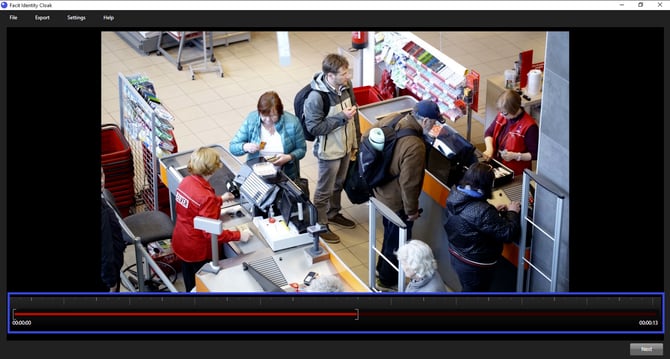
- Click ‘Next’
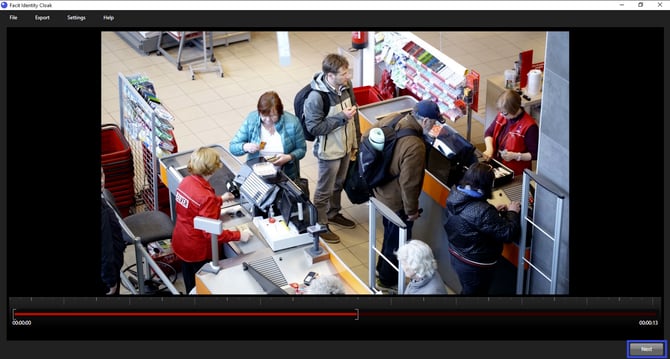
This will then take you to the next working screen where you will able to blur and track.
If you have imported a video with audio, you will skip this screen and the whole video will go through to the second working screen where you are able to redact.